Take Continuous Photos
This example demonstrates a Controller that repeatedly captures still frames from a Raspberry Pi camera.
Initial Provisioning
graph LR;

cli --> control_plane;
console --> control_plane;
control_plane <-- tunnel --> agent;

subgraph user_edge[User Edge]
cli[CLI];
console[Console];
end

subgraph cloud[Cloud <small>api.on-prem.net</small>]
control_plane[Control Plane];
end

subgraph device_edge[Device Edge]
agent[Agent];
end
Subsequent Autonomous Edge Operation
graph TB;

agent --> trigger[Controller];
trigger --> lambda1;
trigger --> lambda2;
trigger --> lambda3;
camera -- libcamera --> trigger;

subgraph device_edge[Device Edge]
agent;
camera[Camera]
end

subgraph agent[Agent]
trigger;
lambda1[Lambda 1];
lambda2[Lambda 2];
lambda3[Lambda 3];
end
Define the Controller
$ onprem generate xid
cmalphe56a11da41vqsg
# continuous_video_frame_capture_raspberry_pi.yaml
id: cmalphe56a11da41vqsg
kind: Controller
name: continuous_video_frame_capture_raspberry_pi
description: >
  Capture continuous still frames from a Raspberry Pi camera.
scriptContentType: Lua
script: >
  local M = {}

  function M.init(context)
  end

  function M.run(context)
    local filename = os.tmpname()
    while true do
      os.execute('rpicam-jpeg --nopreview -o ' .. filename)
      local file = io.open(filename, 'rb')
      local event = {
        data = file:read('*a'),
      }
      io.remove(file)
      coroutine.yield(event)
    end
  end

  return M
Upload it to the control plane
$ onprem apply ./continuous_video_frame_capture_raspberry_pi.yaml
It will now show up in the cloud console, and will now show up as one of the trigger choices when editing a Lambda.
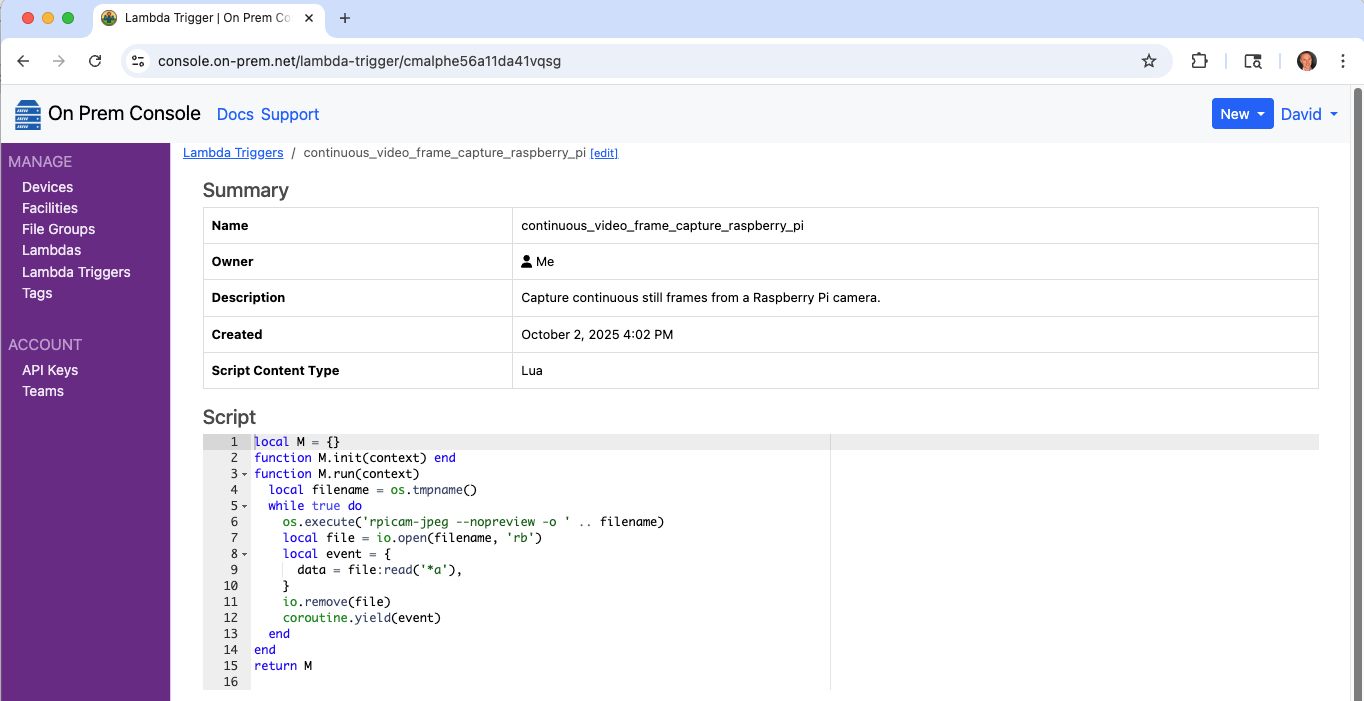
Configure a Lambda to respond
$ onprem generate xid
cmalqo656a11eos3sqb0
# process_image.yaml
id: cmalqo656a11eos3sqb0
kind: Lambda
name: process_image
description: >
  Process an image.
runAt:
  device:
    deviceId: ci2fabp32ckvhk1g9qe0
triggerId: cmalphe56a11da41vqsg
scriptContentType: Lua
script: >
  local M={}

  function M.handler(event)
    local imageData = event.data
    -- TODO ... add handling here
  end

  return M
$ onprem apply process_image.yaml
Manually Trigger for testing
The image processing lambda can be manually tested via the On Prem CLI from a remote desktop, using a locally provided image as input.
$ onprem run lambda cmalqo656a11eos3sqb0 --event-data-from-file ./my.png --event '{"param1": true, "param2": 23}'